- Amazon
- Flipkart
- Meesho
- Amazon Seller FlexNew
- Shipping Label GeneratorShipping LabelNew
- IndiaMart CRM
- Other tools
- Price
- Login

28-09-2026 · PDF Cropper
When new stock arrives or a sale begins, pricing every product by hand can take hours. If your products are already in a spreadsheet, you can print all the price tags at once. This guide shows shops and stores how to print price tags from Excel in bulk with the free Price Tag Maker, from preparing the file to printing the sheets.
Printing tags one product at a time is fine for a few items, but a new delivery of fifty or a hundred products needs a faster method. With one Excel file, every product gets its tags in the same layout and the same size, and you can reprint any time prices change. It also removes typing mistakes, because the prices come straight from your product list instead of being copied by hand.
Download the sample Excel file from the tool and use it as a template. Each row is one product, with these columns:
A short name that customers recognise, such as Cotton Kurti or Basmati Rice 5 kg.
Optional size, colour or weight printed under the name.
The maximum retail price, for example 999.
Optional lower selling price; the discount is worked out for you.
Optional SKU or EAN-13 number printed as a barcode.
How many tags to print for that product.
Keep the barcode column formatted as text so Excel does not change long numbers, and keep names short so they print large on small labels.
Switch to Bulk in the tool and upload your .xlsx or CSV file, or copy the rows (with the header) from Excel or Google Sheets and paste them in. Rows with a missing name and MRP, a price that is not a number or an invalid barcode are skipped and listed with their row number, so you can fix them in the sheet. An offer price higher than the MRP is flagged, because no discount can be shown for it.
Pick the Classic style for everyday tags, Sale for red offer tags, or Minimal for simple MRP stickers. Then choose the sticker sheet you have: A4 sheets with 65, 40, 24, 21 or 12 labels, or a thermal printer roll such as 50 × 25 mm. The tag preview lets you step through every product, and the page preview shows exactly where each tag will print.
Print one page on plain paper and hold it against a sticker sheet to check the alignment.
Keep the scale at 100% so the tags line up with the stickers.
Quality sticker sheets feed smoothly and peel cleanly from products.
Save your Excel list and update only the prices when they change.
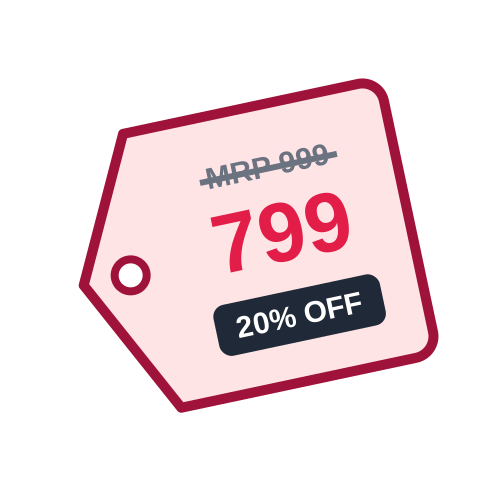
When a sale starts, add the offer price column to your list and switch to the Sale style. The tool prints the offer price in red, strikes through the MRP and shows the % OFF in a red band, so the whole store can be relabelled in one print run. When the sale ends, simply clear the offer prices and print regular tags again.
A well-kept product list saves time every time you reprint tags. Group products by section or supplier, keep one row per product and size, and add a column for notes if you like - the tool simply ignores columns it does not use. When a supplier changes prices, update only those rows and print tags just for the changed products by uploading a smaller list.
With one spreadsheet, a whole store can be priced in minutes. Prepare the Excel file once, upload it whenever stock or prices change, and print price labels that are neat, consistent and correct. For product barcodes on their own, the Barcode Generator uses the same simple Excel upload.
Last Updated: 23-09-2026