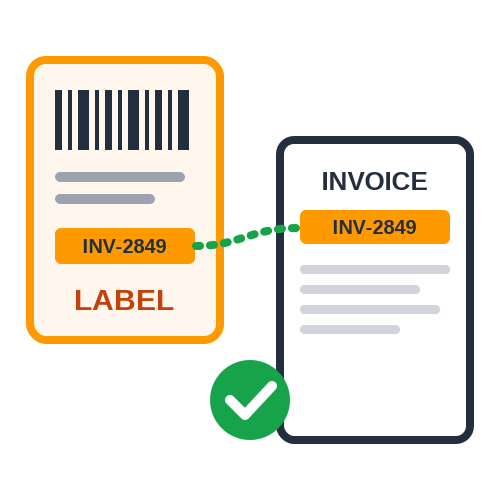
Writing or sticking the MRP on every package slows packing down. The Amazon Seller Flex label crop tool can print it on the label for you, using the numbers from the invoice.
You can print the MRP, SKU and qty on Amazon Seller Flex labels free, straight from the invoice data.
How the MRP Is Calculated
For each product, the tool takes the invoice total amount and divides it by the quantity, rounded up to a whole rupee. It is printed in bold above ATSPL as, for example, MRP: ₹549 with (Incl. of all taxes) below.
What Else Is Printed
- Quantity :
How many pieces of each product go in the box.
- SKU :
Your own product code, read from the invoice.
- Description :
The full product name in a small font, one line per product.
Orders with Several Products
Each product gets its own line and its own MRP. If there is no space above ATSPL, the MRP moves into the product line so it is never missing.
Why MRP on the Package Matters
In India, packaged products sold to consumers must show the maximum retail price, and many sellers also add it to the outer package so buyers and delivery staff can see the declared value. Writing the MRP by hand or sticking separate MRP labels on every package takes time and can lead to mistakes, such as the wrong price on the wrong box. Printing the MRP directly on the shipping label from the invoice data removes that extra step and keeps the price consistent with what was billed. For units you send to Amazon's fulfilment centres, the FNSKU label generator can print the MRP and Legal Metrology details on the FNSKU label itself, and the Price Tag Maker prints MRP stickers for products you sell elsewhere.
How Rounding Works
The MRP printed on the label is calculated from the invoice total for each product divided by the quantity. When the result is not a whole number, it is rounded up to the next rupee, so the printed MRP is never lower than the billed amount per unit. For example, if two units are billed for a total of 1,097 rupees, the per-unit amount is 548.50, and the label shows MRP 549. This keeps the printed value simple and easy to read at a glance.
Checking the Output Before Printing
- Compare With the Invoice :
Check a few labels against their invoices to confirm the MRP and quantity are correct.
- Look at Multi-Product Orders :
Make sure each product line shows its own MRP.
- Check Long Descriptions :
Very long product names are printed in a small font on one line; make sure they are still readable.
- Test Print :
Print one label at actual size to check that the text is clear on your printer.
Using the Printed Details While Packing
The SKU, quantity and description printed on the label also help the packer. Instead of reading the invoice, the packer can check the label to see which products and how many units go into the box. This is faster and reduces the chance of missing an item in multi-product orders, especially on busy days when many similar products are being packed.
Frequently Asked Questions
Can I turn off MRP printing? Yes. Product printing is an option, so you can use it only when you need it.
Is the rupee symbol printed on the label? Yes. The MRP is printed with the rupee symbol, followed by the line Incl. of all taxes.
What if an invoice has a discount? The MRP is worked out from the invoice total and quantity for each product, so it follows the amounts shown on the invoice. If you need a different printed price for a product, check the invoice values before creating the labels.
Does printing the MRP change the barcode or address? No. The product details are added in free space on the label, and the barcode, address and other Amazon details stay exactly as they were.
Conclusion
Turn on product printing in the Seller Flex label crop tool and every label carries the MRP, SKU and quantity your packing team needs.
 ShopsyEffortless Shopsy Label Cropping with SKU & Qty Features
 DelhiveryDelhivery Shipping Label Crop Tool - Crop with SKU & Qty Details
 JiomartEffortless Jiomart Label Cropping with SKU & Qty Features
 MyntraEffortless Myntra Label Cropping with SKU & Qty Features
 AjioAjio Labels for 4x6, A4 and COD Summary
 SnapdealEffortless Snapdeal Label Cropping with SKU & Qty Features
 GlowRoadFast and Accurate GlowRoad Label Cropping Solution